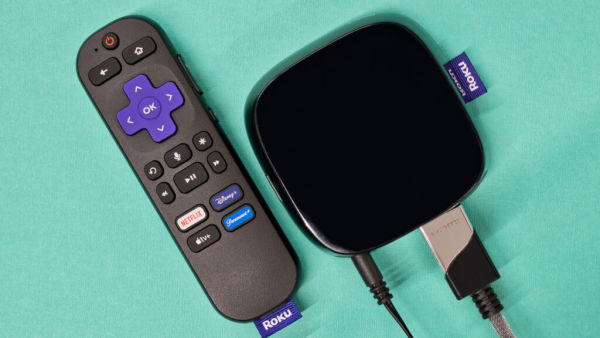
Roku devices are quite convenient if you’re looking for a wide array of TV shows, movies, and more to watch, and there are many great Roku streaming apps other than Netflix. For the majority of users, a Roku device is only useful as long as it has an active internet connection. But even if your internet connection is out, you can still use your Roku device. The catch is that you’ll need to have specific apps installed — meaning your Roku device needs to have been connected to the Internet at some point beforehand, and you need to have done a little preparation.
For example, one popular method of getting around a lack of Internet connection is to use a PC or other form of network-attached storage to stream. This is done through the Roku Media Player app and your local Wi-Fi connection. So long as the NAS and Roku device are connected to the same Wi-Fi network, the Roku Media Player should be able to detect the local NAS and allow you to access the media stored on it, completely bypassing the need for Internet. Of course, this is where the catch comes in, as the initial download of the Roku Media Player will require the Internet. Also, only specific video file formats are playable, including .MKV, .MP4, and .MOV, so you’ll need to convert your media before trying to watch.
For most users, a dedicated NAS-to-Roku local Wi-Fi connection will work out just fine. If you’re looking for a bit more in the performance department, though, you can always try the media server route for improved offline viewing.
Using a dedicated media server isn’t a bad idea either
renata colella/Shutterstock
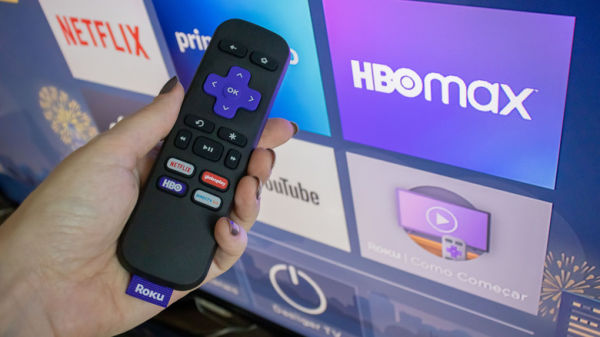
As solid as the NAS option may be for media storage and streaming, some may find they want more. Maybe they have more movies, TV shows, and videos to keep track of, want better and cleaner organization, and desire a means of automatically transcoding media formats. This is where a media server can be the superior choice, with the likes of Plex and Jellyfish allowing users to store and stream their media even without the presence of an active Internet connection. For those concerned, Plex servers are legal, though they can be used illegally. Just like with an NAS, a Roku device is capable of acting as a vessel to view this server-contained media.
Setting up a media server to work with a Roku device is pretty simple, and both Jellyfish and Plex have dedicated apps in the Roku store, although many users note that unlike Jellyfin, Roku’s Plex app struggles to function without Internet.
Using an NAS alone or assembling a dedicated media server can typically make using a Roku device without Internet a breeze — but it may not be for everyone.
The USB method can get the job done, too
Chayjitti Hongmanee/Shutterstock
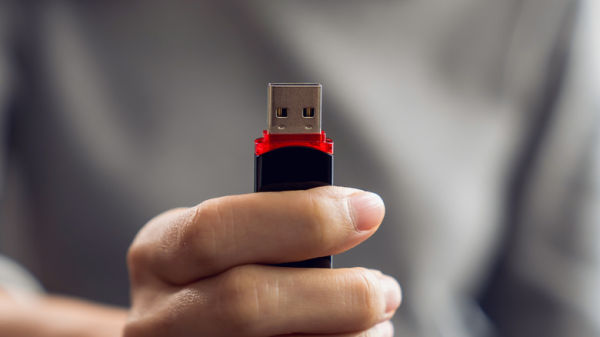
Setting up a NAS or dedicated media server can be a fairly involved process, and might be a little intimidating for folks who are casual users of technology. Fortunately, there’s another, more rudimentary way to use a Roku device without Internet: Wi-Fi-free Roku viewing via a USB drive. While it does have its own set of limitations, it doesn’t take much effort and can keep you occupied during an Internet outage all the same.
All you need is a Roku device with a USB port, and a USB drive with pre-downloaded media. Watching these via the Roku Media Player doesn’t require an active connection since all of the needed data is already present on the drive. Still, if the media player app isn’t already present on your Roku device, you’ll need to install it first. It should also be noted that USB drives may encounter formatting issues; USB 3.0 drives may not work in USB 2.0 ports — two of the many evolutions over the history of the USB — and they may demand more power than your Roku device can handle. MP4, MOV, M4V, MKV, and WebM video formats specifically are supported.
A Roku box or stick is best used with an active Internet connection, but none become complete paperweights when it suddenly goes down. You just have to know your options and make the most of them.